
Getting started
Updated
Getting from zero to your first command takes three steps.
1. Download and install
Section titled “1. Download and install”Download the installer from the downloads page. It installs into your own Windows account, so it does not ask for administrator rights.
-
Close AutoCAD® software, then run the installer. Its files are locked while AutoCAD software is open.
-
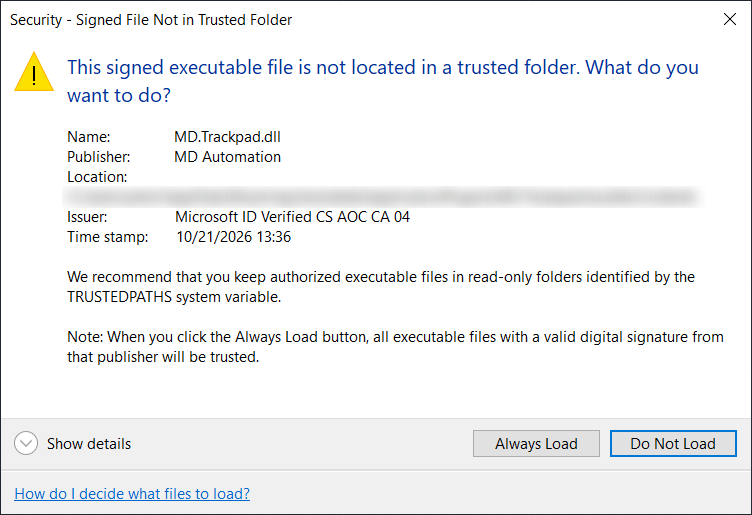
Start AutoCAD software, version 2025 or later. It shows a Security - Signed File Not in Trusted Folder warning with MD Automation as the publisher. Click Always Load.
-
A new MD Automation tab appears in the ribbon. All MD plugins share this tab: each one adds its own panel.
Why the warning appears
Section titled “Why the warning appears”Every MD plugin is digitally signed, and the warning confirms it: it names MD Automation as the publisher, with a certificate verified by Microsoft. AutoCAD software shows it because the plugin installs into your own Windows profile rather than into Program Files, which is what lets the installer run without administrator rights. AutoCAD software trusts only the Program Files plugin folder by default, so it asks you once, then remembers the publisher.
Autodesk describes this warning, and the alternative of adding the folder to the Trusted Locations in AutoCAD software, in its support article This signed executable file is not located in a trusted folder.
Every plugin is also published on the Autodesk App Store. It is the same build; the download here is available the day it ships rather than after review.
2. Try it free, or buy a license
Section titled “2. Try it free, or buy a license”Every plugin includes a free 15-day trial, and commands unlock for good with a Standalone license.
- Free trial: run
MDLICENSEMANAGERand click Start trial on the plugin’s row. One trial per machine; the steps are on activate your license. - Buy: purchase a Standalone license from the plugin’s page, listed under Plugins. After checkout you get a payment confirmation code, then follow activate your license.
3. Run your first command
Section titled “3. Run your first command”Every plugin puts its panel on the same MD Automation ribbon tab, and every command that edits objects works pick-first: select objects, then run it. Try whichever you installed:
| Plugin | Panel | Try this |
|---|---|---|
| Align & Distribute | Arrange | Select a few scattered objects and pick Align Left, or type MDALIGNLEFT. They snap to the leftmost edge of the selection. |
| Rotate & Flip | Rotate/Flip | Select a block and pick Rotate CW, or type MDROTATECW. It turns 90° around its own insertion point. |
| Quick Layer | Layer | Type MDQUICKLAYER, type part of a layer name, and press Enter. That layer is now current. |
| Increment | Number | Select a few text objects and type MDINCREMENT. Check the list of changes in the window, then click Apply. They are numbered in sequence. |
| Trackpad | Trackpad | Type MDTRACKPAD to turn gesture mode on, then scroll with two fingers over the drawing. The view pans instead of zooming; pinch to zoom at the cursor. |
When a command changes objects, one Ctrl+Z, or one click of the Undo arrow on the Quick Access Toolbar, undoes the whole operation, whichever you ran.

Every command is also on the right-click menu. Select objects and right-click: each installed plugin adds its own submenu, grouped together between Group and Select Similar.

Autodesk, AutoCAD, AutoCAD LT and AutoLISP are trademarks of the Autodesk group of companies. MD Automation is not affiliated with Autodesk.