
Update a plugin
Updated
When a newer version of an MD plugin you have installed is published, AutoCAD® software tells you the next time it starts. Your license carries over: an update needs no new key and no new activation.
The update window
Section titled “The update window”Shortly after AutoCAD software starts, a window lists every installed plugin that has a newer version, one section per plugin.
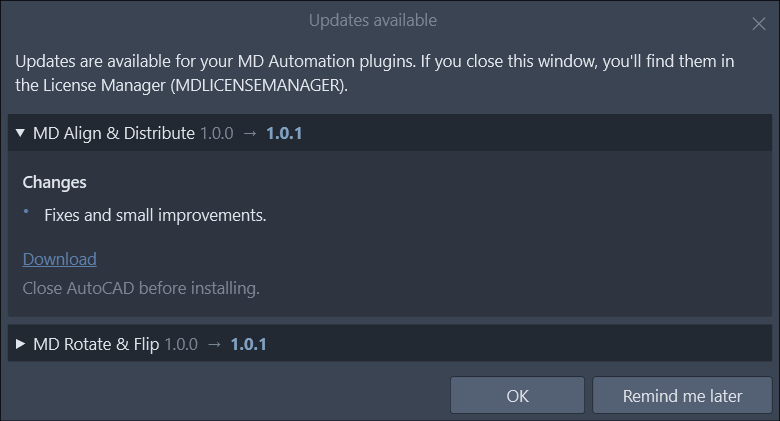
- The version you have, then the new version.
- What changed in the new version.
- Click Download to download the installer.
- Remind me later closes the window, and it opens again the next time AutoCAD software starts.
Click a section’s header to fold it or open it again. Click OK when you are done: the window does not open again for these versions, only when a later one is published.
Update from the License Manager
Section titled “Update from the License Manager”Updates can also be downloaded from the License Manager, whether or not you have closed the update
window. Run MDLICENSEMANAGER: on the Plugins tab, each plugin with a newer version shows an Update available line under its name,
with what changed below it.
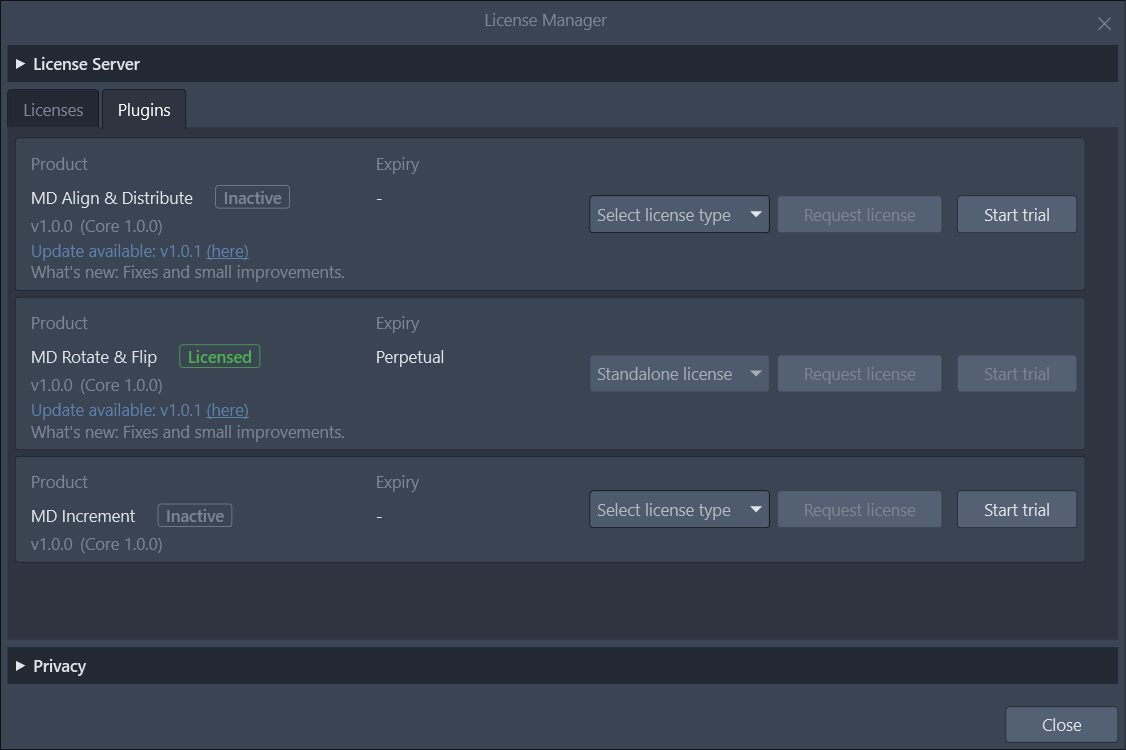
- Click (here) to download the installer. Hover What’s new to read every change.
The Licenses tab shows the same line under each license you own.
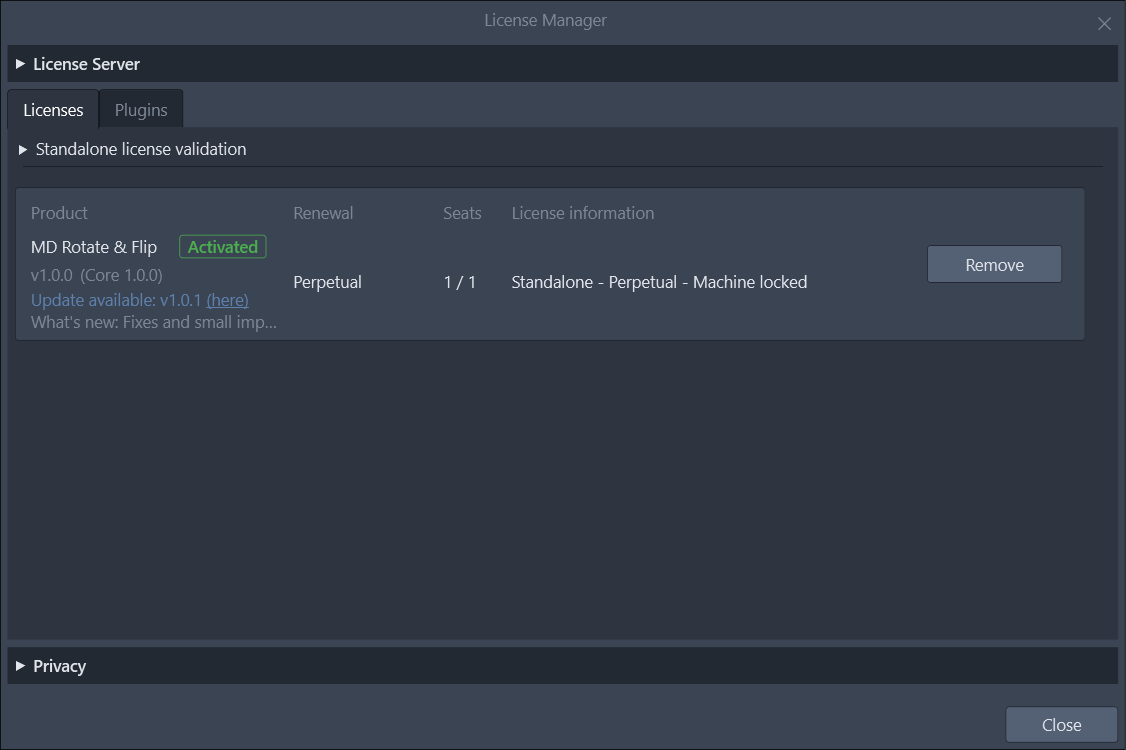
- The same link, under the license it updates.
Install the update
Section titled “Install the update”- Close AutoCAD software. Its files are locked while it is open.
- Run the installer you downloaded. It replaces the previous version.
- Start AutoCAD software. The plugin loads with your license as before.
If you clicked Always Load when you first installed a plugin, the update loads without asking. Otherwise AutoCAD software shows its security warning once more, as described in Get started.
Checking for updates sends nothing that identifies you: see Privacy.
Autodesk, AutoCAD, AutoCAD LT and AutoLISP are trademarks of the Autodesk group of companies. MD Automation is not affiliated with Autodesk.